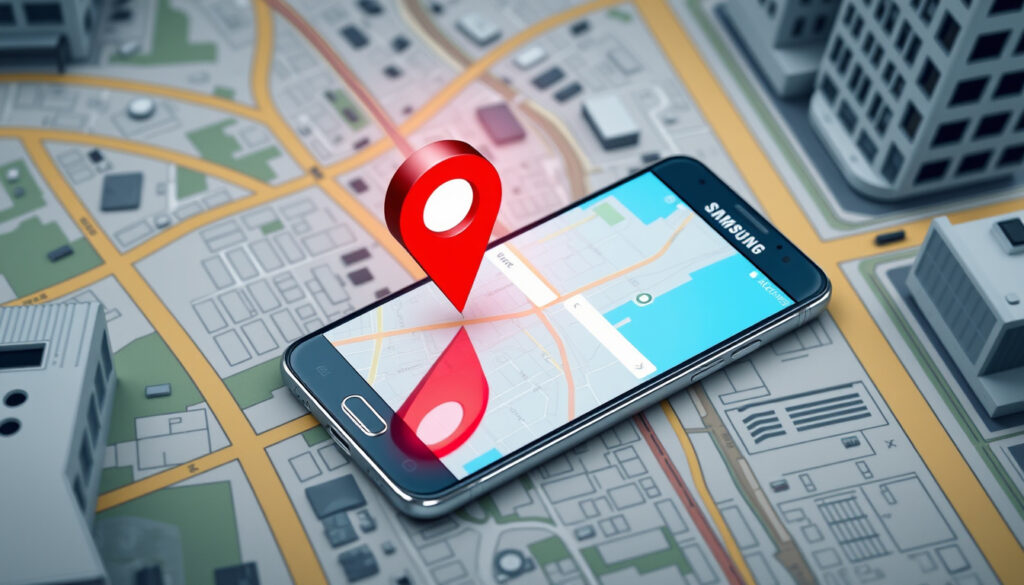
How to Find My Phone Samsung: SmartThings Find Guide
Whether it slipped between the couch cushions or vanished after a night out, a missing phone triggers that particular spike of panic. Samsung owners have two solid routes to pull their device back into view: SmartThings Find, the company’s own network, and Google Find My Device, which works across all Android phones. The good news is that one of them can actually locate your phone even if it is powered off.
Primary Service: SmartThings Find · Alternative Service: Google Find My Device · Samsung Official Site: smartthingsfind.samsung.com · Google Tool URL: myaccount.google.com/intro/find-your-phone
Quick snapshot
- SmartThings Find integrates Find My Mobile and locates Galaxy phones, tablets, watches, earbuds, and SmartTags (Samsung Malaysia)
- Offline Finding uses nearby Galaxy devices to locate lost items without internet on the lost device (Samsung Malaysia)
- SmartThings Find shows map with addresses and timestamps for lost devices (Samsung US Support)
- Exact rollout date for Google’s Pixel Power-off Finder feature
- Specific regional restrictions beyond Malaysia, US, and Levant coverage
- Real-world success rates for offline finding in controlled tests
- Find My Mobile integrated into SmartThings Find before 2024 (Samsung Malaysia)
- Google Find My Device offline tracking fully supported since 2024 (Seinxon comparison)
- Google announced Pixel Power-off Finder copying Samsung feature, expected pre-2026 (SamMobile)
- Google reportedly plans to match Samsung’s powered-off finding capability
- Samsung continues expanding device compatibility for offline tracking
- Cross-device sharing features expanding across Galaxy ecosystem
The table below summarizes the key technical specifications and options for both tracking services.
| Label | Value |
|---|---|
| Main Samsung Service | SmartThings Find |
| Integrated From | Find My Mobile |
| Google Alternative | Find, secure, or erase |
| Key URL | smartthingsfind.samsung.com |
| Android Requirement | Android 8+ (phones/tablets) |
| App Requirement | Android 9+ with 3GB RAM or iOS 14+ |
| Last Location Trigger | 5% battery or before data loss |
| Ring Duration | 1 minute at max volume |
How do I locate my lost Samsung phone?
The fastest path to a missing Galaxy starts at Samsung’s own portal. SmartThings Find aggregates all location data for devices signed into your Samsung account and presents it on a single map with addresses and timestamps.
Using SmartThings Find
Point your browser to smartthingsfind.samsung.com and sign in with the Samsung account linked to your phone. From there you can ring, lock, backup, or wipe your device remotely. SmartThings Find rings the device at maximum volume for 1 minute, even if it is set to silent or vibrate. The platform also shows a map view with addresses and timestamps so you know exactly where your device last sent a signal.
You can also access these features through the SmartThings app by tapping the Live tab and selecting Find. Samsung activates SmartThings Find automatically when you log into your Samsung account, so no extra setup is required beyond having that account in place.
Requirements for location tracking
For full functionality, the device must be powered on, connected to a network, and logged into a Samsung account. If the phone is off, SmartThings Find still captures the last known location before shutdown. The service supports Galaxy smartphones and tablets running Android 8 or later, along with Galaxy Watch3 and later models, Galaxy Buds Live, Pro, and 2 series, and all Galaxy SmartTags.
Samsung activates Find My Mobile automatically when you sign into your Samsung account. If you have not already done that, your device is already set up to be found.
How do I find my Samsung phone using another phone?
If you have access to a second Galaxy device, you can use the Find My Mobile app or SmartThings app to locate your missing phone without opening a browser.
Via Samsung Find My Mobile app
Download the Find My Mobile app from the Google Play Store onto another Samsung or Galaxy device. Sign in with the same Samsung account credentials you use on your missing phone. The app displays all registered devices on a map and lets you ring, lock, or erase them. You can also view location history, which remains stored even if someone removes the SIM card.
Steps on second device
- Open the Find My Mobile or SmartThings app on the second device
- Sign in with the Samsung account linked to your lost phone
- Select your missing device from the registered device list
- Choose an action: ring, lock, backup data, or erase
- If locking, set a recovery message and alternate contact number
SmartThings Find detects SIM card changes and continues showing location history even after the original SIM is removed, which means whoever has your phone cannot easily hide its movements by swapping cards.
Remotely locking a device prevents unauthorized access to your data even before you decide whether to erase it. Setting a custom lock message with a reward offer often yields faster returns than hoping for the best.
How do I locate my phone from another device?
If you prefer not to install a dedicated app, Google Find My Device works through any browser on any phone, tablet, or computer.
Google Find My Device method
Visit myaccount.google.com/find-your-phone and sign in with the Google account connected to your Samsung phone. The interface shows your device’s current or last known location on a map, lets you ring it at full volume for five minutes, enables Lost Mode to lock the device and display a message, or lets you erase it entirely if recovery is no longer realistic.
Google Find My Device relies on a network of over 3 billion Android devices for offline tracking via Bluetooth, a capability that became fully supported in 2024. This means the service can locate your phone even when it is not connected to Wi-Fi, as long as nearby Android devices are within Bluetooth range.
Using Android or web
On an Android device, you can also install the Find My Device app from Google Play. The interface mirrors the web version: map view, ring button, Lost Mode toggle, and erase option. Both the app and web version require your Google account credentials to sign in.
Google Find My Device offers only three options compared to SmartThings Find’s eight, and it lacks the ability to locate devices that are powered off. For Samsung phones, SmartThings Find is the more powerful choice.
How can I track my lost Samsung phone from another phone?
Cross-device tracking works differently depending on whether both devices are Samsung products or if you are mixing brands.
Cross-device tracking with SmartThings
SmartThings Find works best when both devices run Samsung software, because the Galaxy network shares location data between devices signed into the same account. If your second device is a Galaxy phone, tablet, or watch, the experience is seamless: open SmartThings, navigate to the Live tab, tap Find, and your registered devices appear immediately.
If your second device is a non-Samsung Android phone, you can still use SmartThings Find through the SmartThings app, though some features may require additional permissions. For iPhone users, the web portal at smartthingsfind.samsung.com remains the most reliable option.
Offline finding features
SmartThings Find uses offline finding, a feature that relies on signals from nearby Galaxy devices to pinpoint a lost item even when the lost device has no internet connection. This works through Bluetooth Low Energy beacons that nearby Galaxy phones, tablets, and watches detect and relay to Samsung’s servers anonymously. The system supports Galaxy Watch3, Watch4, Watch5, Galaxy Buds Live, Buds Pro, Buds2, and Buds2 Pro, plus all Galaxy SmartTag models. To enable offline finding for Galaxy Watch or Buds, open the Galaxy Wearable app and confirm the feature inherits your phone’s Find My Mobile settings.
Offline finding only works if nearby Galaxy devices are present to detect the signal. In rural areas or isolated spaces with few Samsung users, the feature may be less reliable. Urban environments with high Galaxy device density offer the best results.
Can I locate a lost Samsung phone?
Yes, under most circumstances. The two main limitations are prior setup requirements and, in Google’s case, the powered-off state of the device.
Yes, if location services enabled
SmartThings Find requires that location services be turned on in your phone settings before the device goes missing. Samsung activates the service automatically upon Samsung account login, but the phone itself must have location sharing enabled. For Google Find My Device to work, the phone needs to be visible to Google’s Find My Device service, which also depends on location settings and account status.
Free official methods
Both SmartThings Find and Google Find My Device are free services. Samsung does not charge for device location, remote lock, backup, or erase through SmartThings Find. Google offers its Find My Device service at no cost for all Android brands. The main cost is the setup time: ensuring your Samsung account is active, location services are enabled, and you know your login credentials before a loss occurs.
One standout capability: SmartThings Find can send your phone’s last known location when battery drops to 5 percent, capturing the position before the device powers down entirely. This “send last location” feature activates automatically before battery exhaustion or data connection loss, giving you a final coordinate even if you never find the device while it is still on.
“SmartThings Find will help you locate your missing Galaxy phone, tablet, watch, or earbuds.”
— Samsung US Support
“Samsung has the option for you to locate it even if the device is powered off, that’s correct, even if the battery is at zero.”
— Tech Reviewer
Google is reportedly working to match Samsung’s powered-off finding capability with a feature called Pixel Power-off Finder, though this requires specific Bluetooth hardware and has no confirmed rollout date. Until that arrives, Samsung owners have a genuine advantage: their phones can be found even in a powered-off state, a feature no other Android brand currently offers.
Related reading: How to Solve a Rubik’s Cube: 7-Step Layer-by-Layer Guide · Pay M50 Toll Online: www.eflow.ie Guide to Login & Deadlines
youtube.com, youtube.com, youtube.com, samsung.com, samsung.com
Samsung’s SmartThings Find integrates tools like Find My Mobile, detailed in this comprehensive Samsung recovery guide, to help users quickly track, lock, or erase a lost Galaxy phone from anywhere.
Frequently asked questions
What is SmartThings Find?
SmartThings Find is Samsung’s official device location service that integrates the former Find My Mobile into the SmartThings platform. It lets you locate Galaxy phones, tablets, watches, earbuds, and SmartTags remotely via the SmartThings app or the web portal at smartthingsfind.samsung.com.
Does Find My Phone work if battery is dead?
Samsung’s SmartThings Find can show the last known location before the battery died, but it cannot actively track a device with no power. Google Find My Device cannot locate a powered-off phone at all, though Google is reportedly developing this capability.
Can I find my Samsung phone without internet?
Yes, through SmartThings Find’s offline finding feature, which uses Bluetooth signals from nearby Galaxy devices to locate your phone without requiring an internet connection on the missing device itself.
How to enable lost device protection?
Sign into your Samsung account on your Galaxy device. SmartThings Find activates automatically. To confirm, open Settings > Biometrics and Security > Find My Mobile and ensure “Allow this phone to be found” is enabled.
Is Samsung Find free?
Yes. SmartThings Find is a free service for all Galaxy devices with a Samsung account. Remote ring, lock, backup, wipe, location history, and offline finding are all included at no charge.
What if my phone is off?
SmartThings Find captures the last known location before the device powers off and sends it to your Samsung account when battery reaches 5 percent. Google Find My Device cannot locate powered-off devices, though this is expected to change as Google develops its own powered-off finding feature.
More related posts
 Glow For It Lash Serum: Reviews, Results & How to Use
 International Women’s Day 2026: Give To Gain Theme & Events
 Task (TV Series) Cast: Main Actors & Season 2 Updates
 Cast of The Forsyte Saga: All Actors in 1967, 2002 & 2024
 Are Opticians Open During Lockdown? Specsavers Ireland Guide
 A Bronx Tale Cast: Where Are They Now in 2025
 What’s On in Dublin This Weekend – Billie Eilish Gigs, Free Museums, Family Fun
 South Africa vs India T20I: Scores, Results & Updates